How to scan groceries into Google Sheets: 5 methods that work
Google Sheets can't scan a receipt on its own, but a free trick with Google Drive and Docs gets your groceries into a spreadsheet in minutes. Five methods below, ranked by effort, plus when a spreadsheet stops being enough.
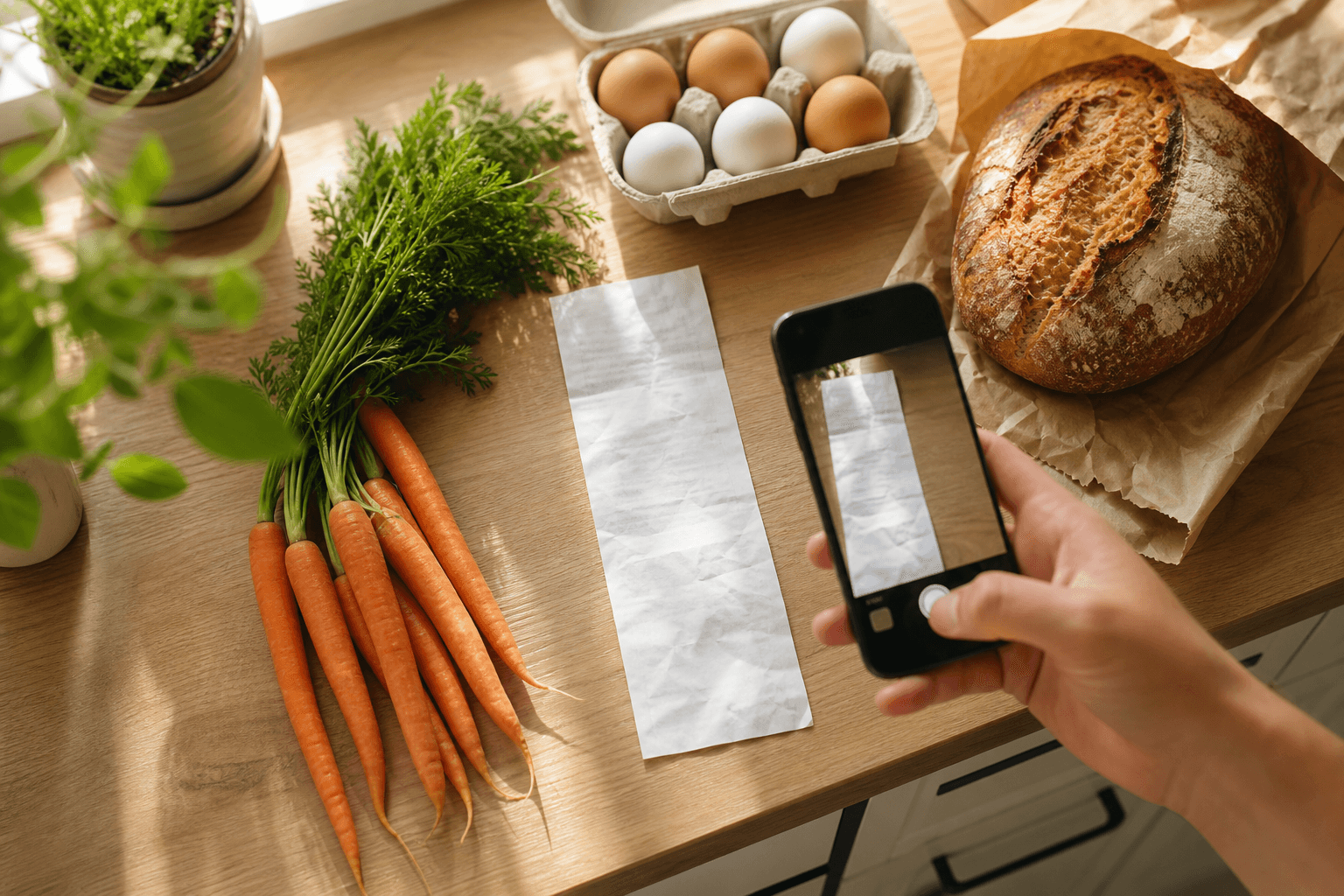
The fastest free method: photograph your receipt, upload it to Google Drive, then open it with Google Docs to run Google's built-in text scanner, and paste the results into a new sheet. Dedicated scanning apps skip the copy-paste but add a monthly fee.
Google Sheets has no camera button of its own, so "scanning" groceries into it always means routing a photo through something that can read text, then landing the result in a spreadsheet. Below are the methods that work, starting with the one that costs nothing and needs no new app.
How do you scan a receipt into Google Sheets for free?
Google Drive has a text-reading tool built into Google Docs, and you already have access to it if you have a Google account. Here's the full process:
- Photograph the receipt. Lay it flat, use good light, and avoid shadows across the print. Curled edges and glare are the biggest causes of garbled results.
- Upload the photo to Google Drive, from your phone or a computer.
- Right-click the file and choose Open with, then Google Docs. Google runs its text recognition automatically and creates a new document with the receipt image on top and the extracted text underneath.
- Check the file size. Google Docs OCR only works on images and PDFs under 2MB, so a full-resolution phone photo of a long receipt occasionally needs compressing first.
- Copy the item lines out of the new Doc, skipping the store header, barcode strings, and payment footer.
- Paste into a new Google Sheet as plain text. Use Ctrl+Shift+V (or Cmd+Shift+V on a Mac) so formatting from the Doc doesn't carry over.
- Split the pasted text into columns. Highlight the column, then go to Data, then Split text to columns, so item names separate from prices.
- Clean up leftovers. Receipt OCR tends to misread decimal points, mash two items into one line, or drop a letter here and there. A quick scan down the column catches most of it.
The whole thing takes five to ten minutes per receipt once you've done it a time or two. It's free, it uses tools you already have, and it's the best option if you only need to log a receipt occasionally.
Can Google Lens scan barcodes straight into a spreadsheet?
Not directly. Point your phone camera at a barcode or a can of beans in Google Lens and it will identify the product, pull up pricing, and sometimes surface nutrition details, which is genuinely useful for naming unlabeled pantry items. What it won't do is drop that result into a Google Sheet row for you. You still have to type or paste the item name in yourself, so think of Lens as a lookup tool, not a scanning-to-spreadsheet solution.
What about dedicated receipt-scanning apps?
Several phone apps exist specifically to turn a photo into a spreadsheet row, with names like Sheetify, ReceiptSync, and Receipts2sheets. The pattern is similar across all of them: connect your Google account once, then every scan lands as a new row with columns already split out for date, merchant, item, price, and category. That saves the copy-paste-and-clean-up steps above, which matters if you're logging receipts weekly rather than once.
The tradeoff is that most of these apps are subscription tools with a limited free tier, and their OCR still stumbles on faded thermal paper or handwritten totals just like the free method does. They're worth it if you're scanning receipts often enough that the time saved covers the fee; they're overkill for one receipt a month.
Which method should you use?
| Method | Cost | Setup time | Best for | Watch out for |
|---|---|---|---|---|
| Google Drive plus Docs OCR | Free | None | Occasional receipts | Manual cleanup, 2MB file limit |
| Google Lens | Free | None | Naming unlabeled items | No spreadsheet export |
| Scanning app (Sheetify, ReceiptSync, Receipts2sheets) | Free tier, then paid | 10 minutes to connect | Weekly or frequent receipts | Recurring fee, still misreads some fonts |
| Apps Script plus Cloud Vision API | Near-free, small API cost | 30 to 60 minutes | Tech-comfortable users who want full automation | Requires a Google Cloud project |
| Typing it in by hand | Free | Ongoing | Short lists | Slowest, most typos |
If you want a fully automated pipeline and don't mind a little setup, a Google Apps Script tied to the Cloud Vision API can watch a Drive folder and write new receipt photos straight into a sheet without you copying or pasting anything. It requires creating a Google Cloud project and turning on billing for the Vision API, so it's really only worth building if you're comfortable with light scripting or have someone who is.
Should you keep a running Google Sheet or use an app instead?
A spreadsheet is genuinely good for a one-time job, like comparing prices across stores or tallying up what you spent this month. It starts to strain with ongoing use, though. A sheet doesn't know that the chicken breast you scanned in on Monday should be used by Thursday, it won't warn you before the yogurt turns, and it can't tell you what you can cook tonight with what's already on hand. Someone has to open it, remember to update it, and cross-reference it manually every time.
A dedicated app closes that gap. If scanning groceries into a spreadsheet is really step one of a bigger goal, like tracking pantry inventory or keeping track of food in your fridge, a pantry inventory app built for the job will save you more time than any spreadsheet formula. Well Stockd lets you add items once, keeps expiry dates for you, and matches what's in your fridge, freezer, and pantry against thousands of recipes, so you know what you can make tonight without opening the door to check. For the fuller picture of building out a whole system, the pantry and fridge tracking guides linked above walk through the rest of the setup.
Frequently asked questions
Does Google Sheets have a built-in scanning feature? No. Google Sheets cannot read text from a photo on its own. Any scanning method routes the image through a separate tool first, such as Google Docs OCR, a third-party app, or the Cloud Vision API, and only the extracted text ends up in the sheet.
Can I scan a barcode directly into a Google Sheet? Not without extra setup. Google Lens and most phone cameras can identify a product from its barcode, but getting that result into a spreadsheet row requires either typing it in manually or building a small automation with Apps Script and a barcode lookup API.
How accurate is receipt OCR? It depends heavily on the receipt. Crisp, freshly printed receipts in a standard font usually come through close to perfect. Faded thermal paper, handwriting, and receipts photographed at an angle produce more errors, so plan on a quick proofread of any scanned list before you rely on it.
Updated July 2026.